Unmatched Results Notifications
Last updated: August 20, 2026
Overview
Junction can email your team when a lab result can't be matched to an order and needs your review.
There are two notifications:
a daily digest of everything awaiting your team's action, and
a real-time email for any unmatched result the lab has flagged critical.
Nothing is sent until you add a recipient address. Notifications are off until someone on your team configures them, so this is worth doing before you start relying on the workflow — otherwise the only way to spot cases is to check the dashboard.
Setting up notifications
You can configure recipients at the organization level, the team level, or both. Organization and Team Admins can set this up.
Organization level
Sign in at app.junction.com.
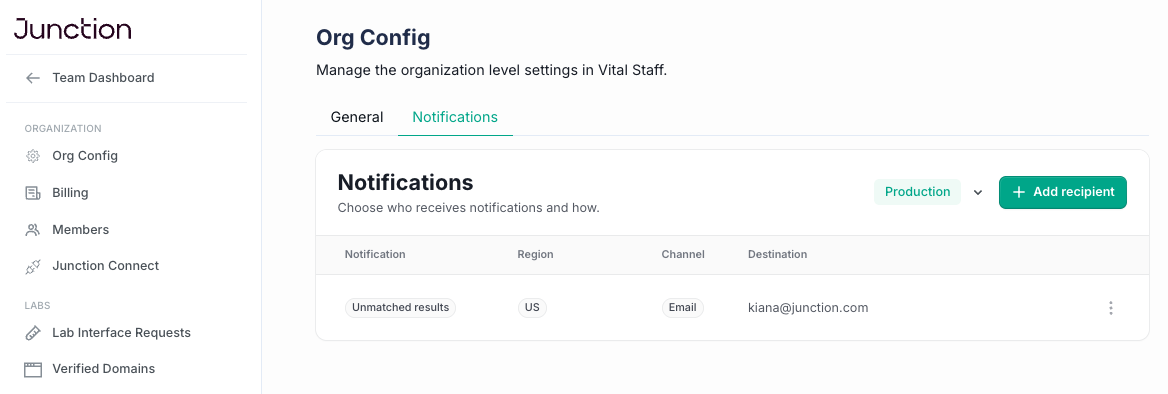
Open Org config in the top left dropdown menu (click on your team's name) and select the Notifications tab.
Check the environment selector is set to the environment you want. Sandbox and Production are configured separately.
Choose the Unmatched Results notification type and add the email addresses that should receive it.
An organization-level recipient receives one digest covering every team in your organization, broken down by team. For groups managing many teams, this avoids switching into each one to check for outstanding cases.
Team level
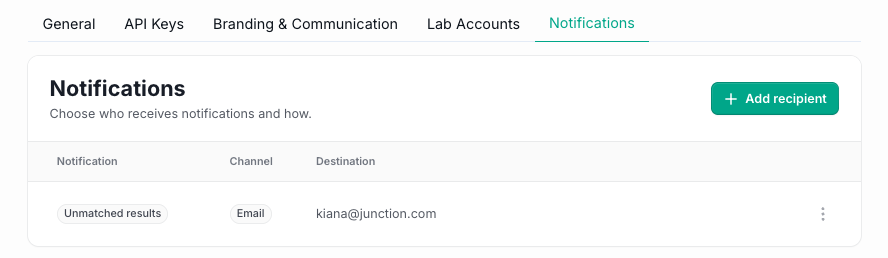
Open Team config from your sidebar navigation and select the Notifications tab.
Add the email addresses that should receive notifications for that team.
A team-level recipient receives only that team's cases.
Recipients
You can add more than one address at either level. A shared inbox — a support or concierge address the whole team watches — usually works better than an individual's address, since cases need to be picked up when that person is away.
The daily digest
One email per day summarizing what's waiting on your team. The subject line carries the totals, for example: "15 results need matching — 4 new".
The body has two sections:
New today — cases that entered the queue since the last digest.
Waiting from earlier — cases still awaiting action from previous days, with how long each has been waiting. These keep appearing until they're resolved.
Each case shows the team it belongs to, the reason the result couldn't be matched, and a link straight to that team's Unmatched Results page.
The reason labels in the digest are the same ones shown in the dashboard, so you can triage from the email before opening it:
Label | What happened |
|---|---|
Order already completed | The sample matched an order that was already completed |
Order was cancelled | The sample matched an order that had been cancelled |
Order not marked as collected | The order isn't in a state that can receive a result |
Open order at a different lab | The patient's open order is for a different central lab |
Matches more than one patient | Demographics match more than one patient |
Order found, but patient details don't match | Sample ID matched an order, but the demographics didn't |
Patient found, but no matching order | Patient identified, but no order carries this sample ID |
No match found | Neither patient nor order could be identified confidently |
See Resolving Unmatched Results in the Dashboard for what to do with each.
Critical results
If a lab flags an unmatched result critical, it's sent immediately in its own email rather than held for the next digest. The email identifies the result as critical and links to the case.
This is separate from Junction's existing critical results handling for matched orders — see Critical Results in the Orders Dashboard.
Webhooks
If you'd rather build notifications into your own systems, the labtest.match_review.created event fires when a result enters the customer review queue. You can use webhooks alongside email or instead of it.
See the Unmatched Results Integration Guide for payloads, signature verification, and delivery behaviour.
Not receiving notifications?
Work through these in order:
Check a recipient is configured. No address means no email. Check both Organization config and Team config.
Check the environment. Preferences set in Sandbox don't apply to Production, and vice versa.
Check your spam and quarantine filters. Digests come from Junction's sending domain and can be caught by strict filtering on shared inboxes — worth allowlisting.
Check there was anything to send. If nothing is waiting on your team, there's nothing to report.
If you've checked all four and still aren't receiving digests, contact us through your shared Slack channel with the environment, team, and the address you configured.