Testing Unmatched Results in Junction Sandbox
Last updated: August 20, 2026
Overview
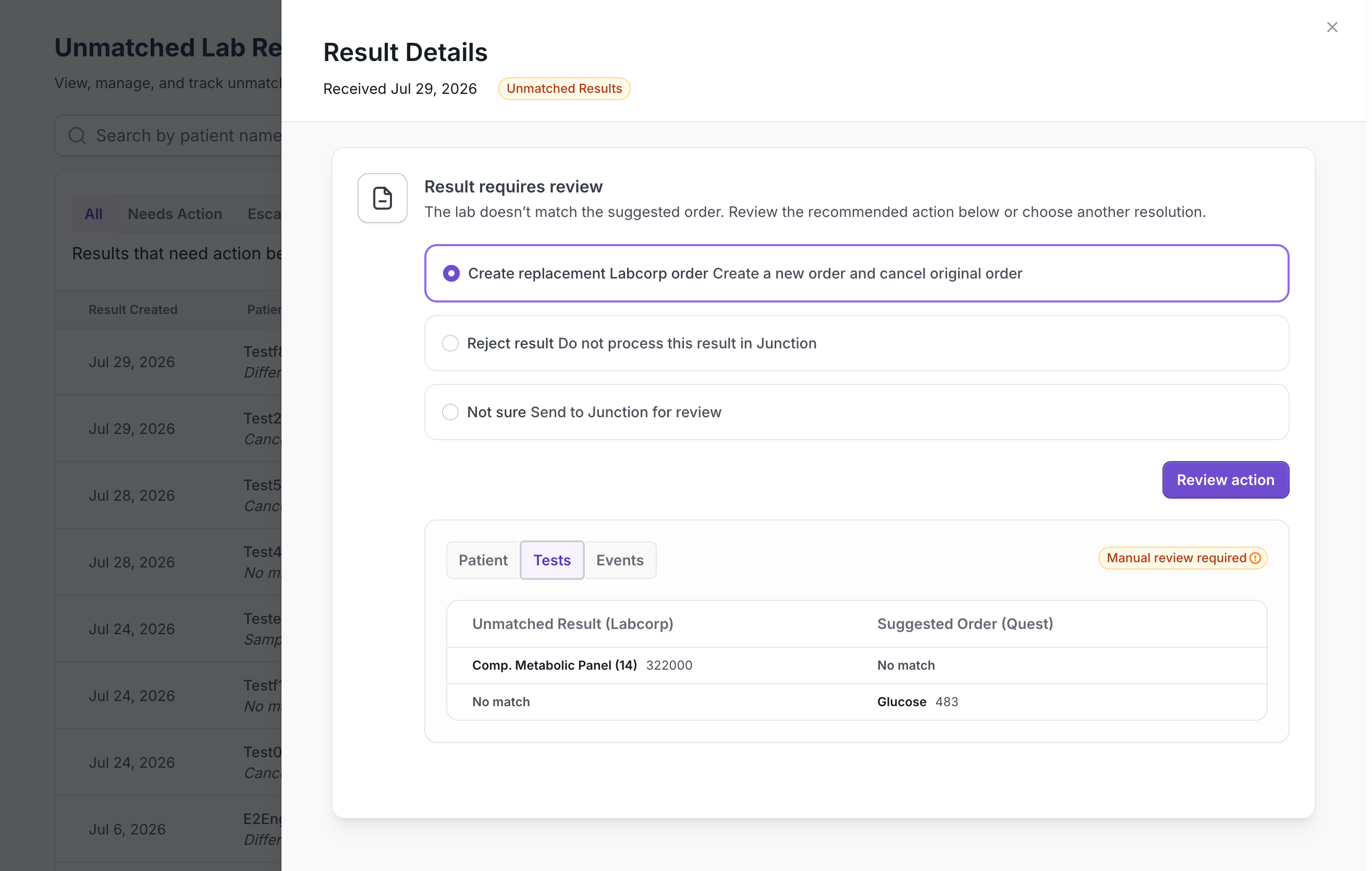
The Unmatched Results workflow allows your team to review lab results that Junction could not automatically match to a single order with complete confidence.
Instead of coordinating with Junction over Slack, your team can review the case directly in the Junction dashboard, choose the appropriate resolution, or send the case back to Junction for review when additional investigation is needed.
This guide covers testing the dashboard experience in Sandbox.
Building against the API instead? See the Unmatched Results Integration Guide for webhooks, testing APIs, and endpoint documentation.
Before you begin
To test this feature, your Sandbox team must have Unmatched Results enabled.
If you’re participating in our beta, Junction will enable the feature for your Sandbox environment and provide representative test cases for your team.
Sandbox testing does not affect your production environment.
Accessing Unmatched Results
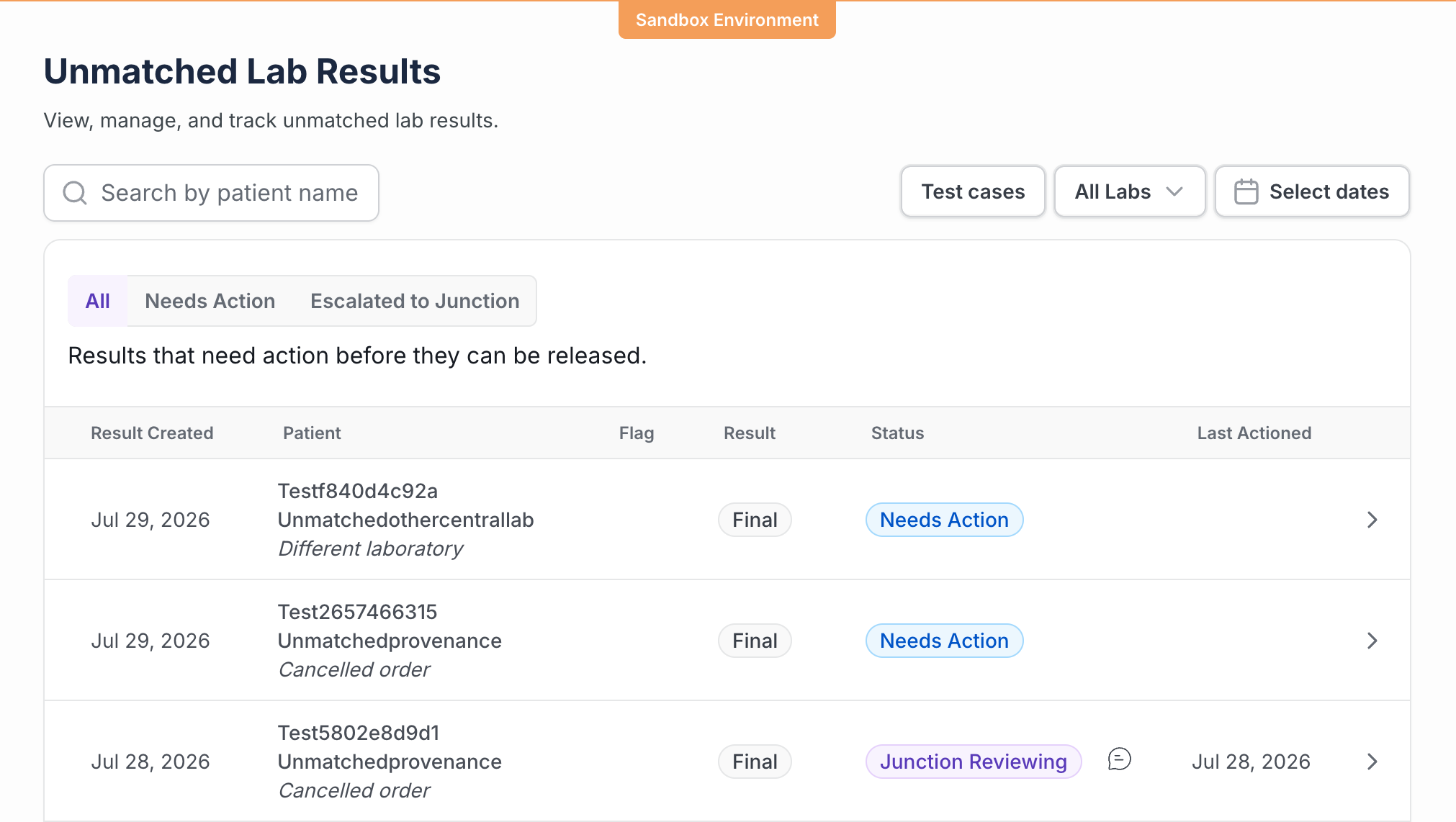
Sign in to your Junction account.
Make sure you are in Sandbox.
Select Unmatched Results from the left navigation.
You’ll see two queues:
Needs Action — results awaiting a decision from your team.
Junction Reviewing — results your team has escalated to Junction for investigation.
What to test
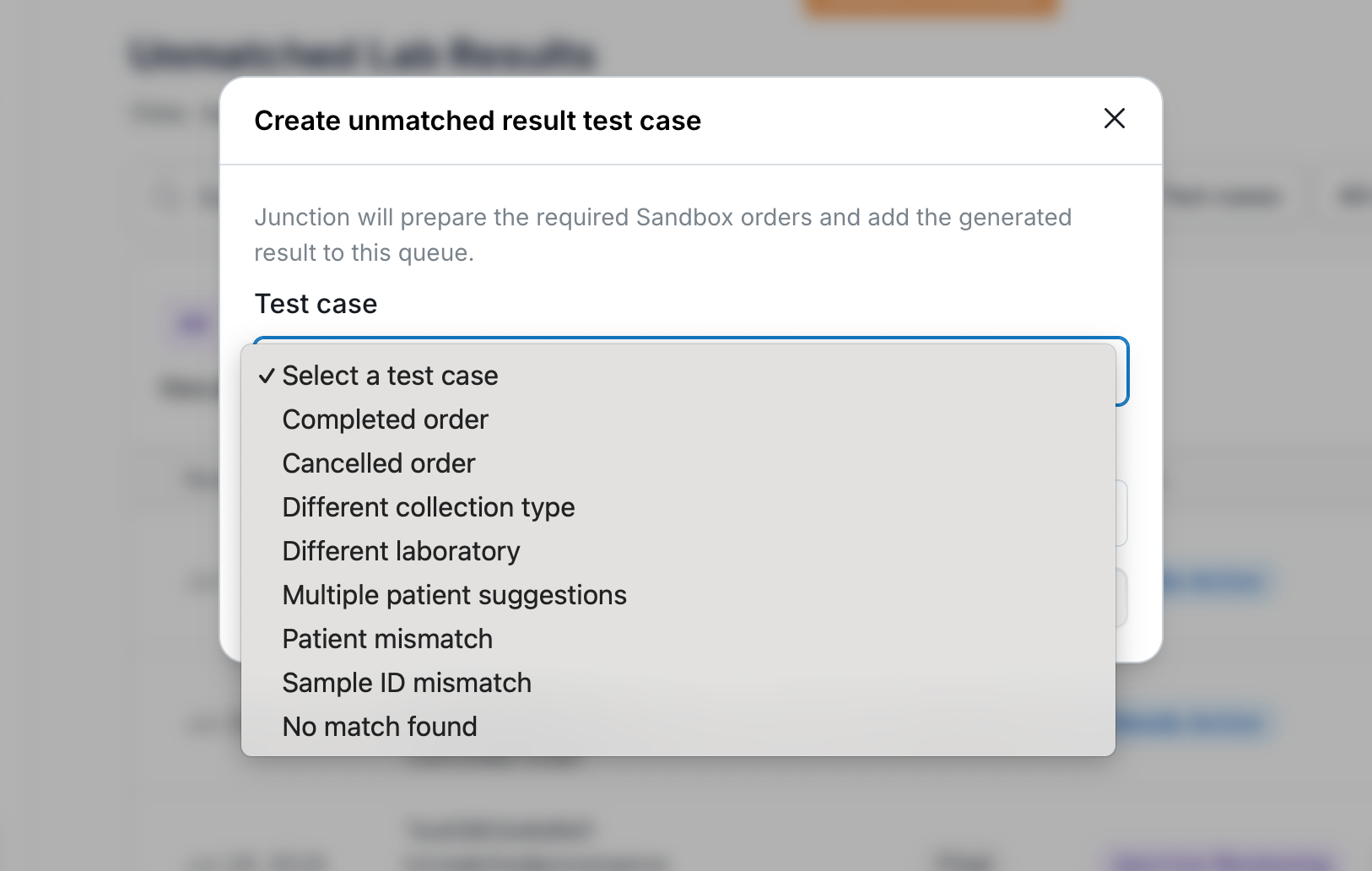
We recommend reviewing several different unmatched-result scenarios.
For each case:
Review why the result requires attention.
Review the suggested patient and order.
Compare the available information.
Review the recommended resolution.
Complete one of the available actions.
Available actions
Depending on the type of unmatched result, you may be able to:
Accept the recommended resolution

Use this when you’re confident the suggested resolution is correct.
Depending on the case, Junction may:
attach the result to an existing order,
create a replacement order,
recreate an order, or
cancel an incorrect order as part of resolving the case.
Reject the result
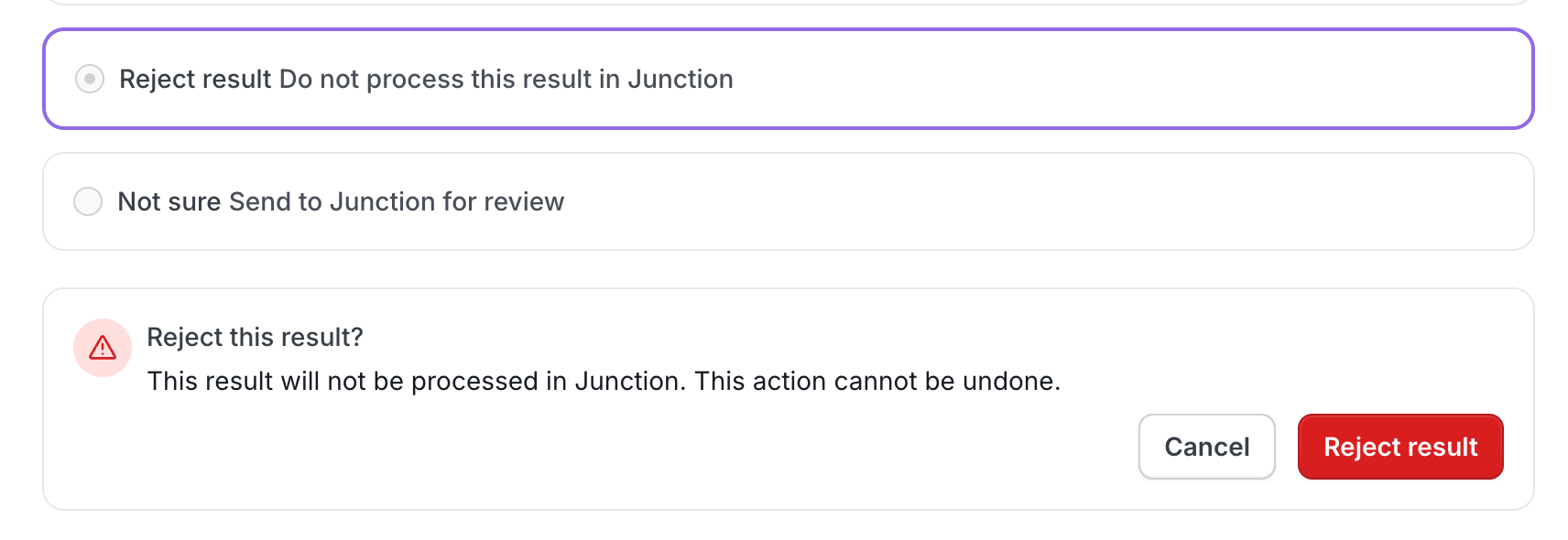
Reject the result if it does not belong to one of your patients or should not be attached to an order.
Send to Junction
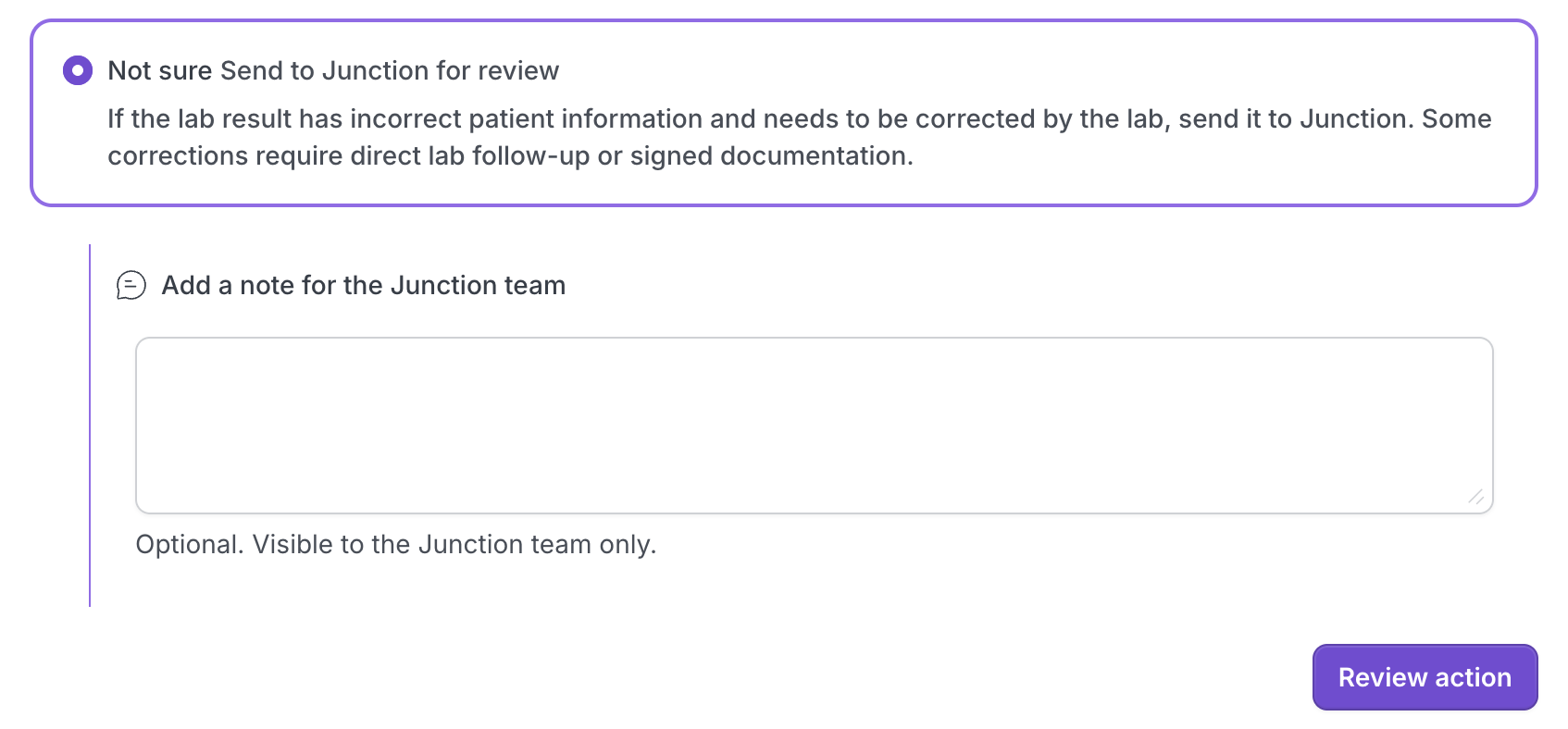
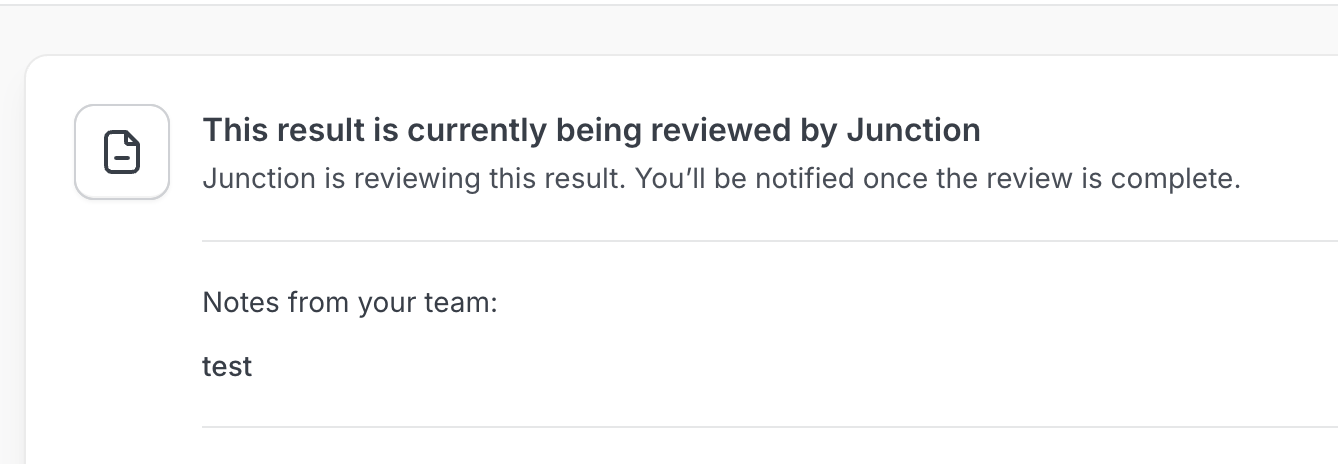
If additional investigation is needed, send the case to Junction with a note explaining what your team found.
The case will move into Junction Reviewing, where you’ll be able to review your submitted notes while the investigation is in progress.
Notifications
You can be notified by email when results need review. Nothing is sent until someone configures a recipient address — if no email is set for your team or organization, you won't receive anything.
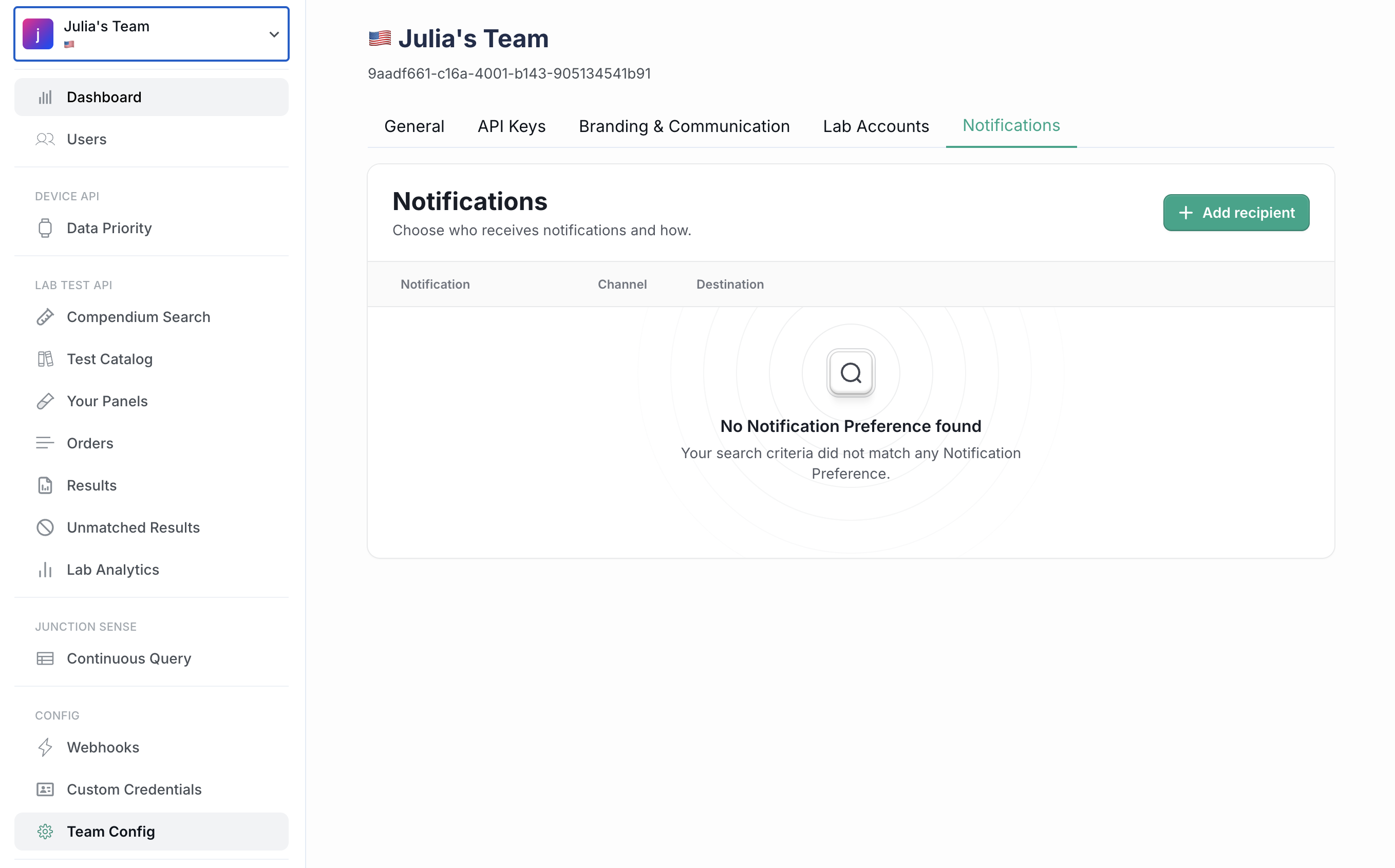
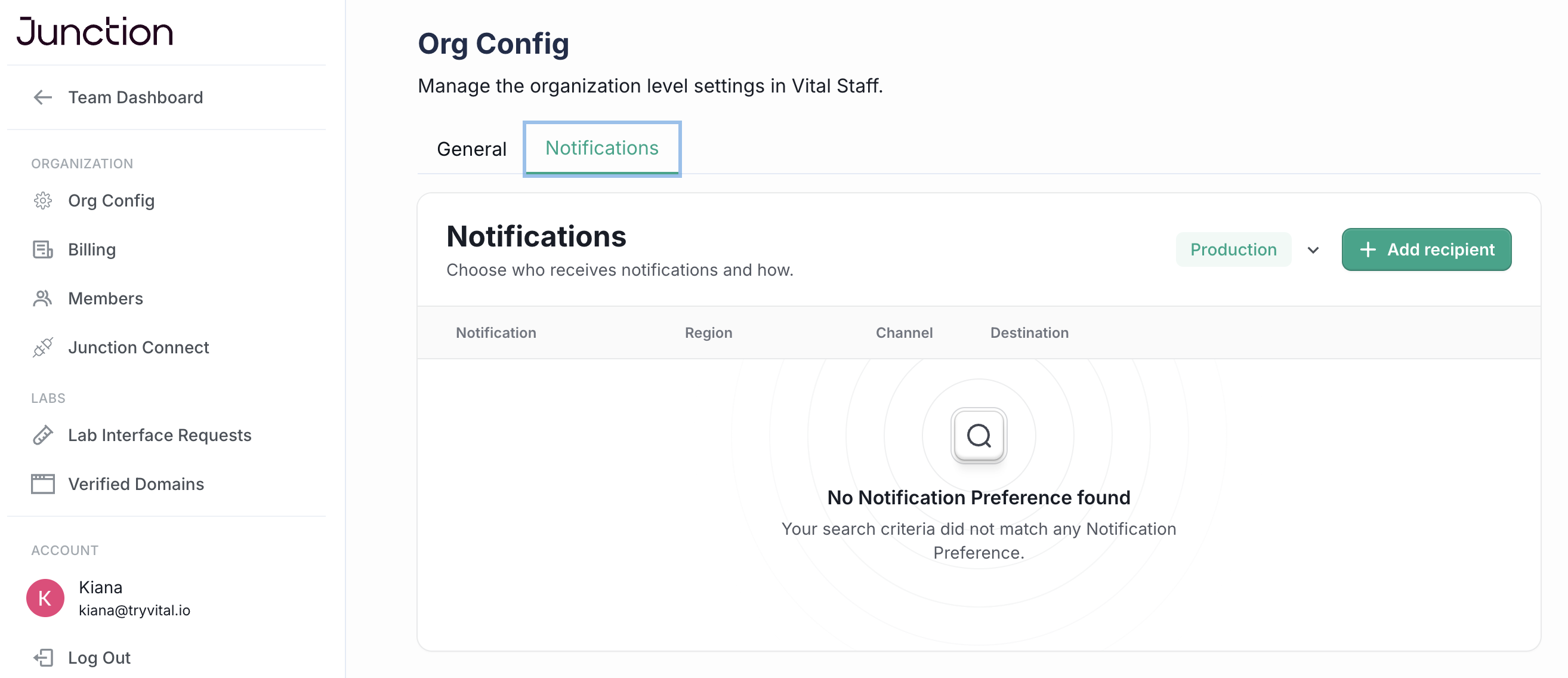
Setting up email notifications
Go to Organization config → Notifications (Org Admins) or Team config → Notifications (Team Admins).
Confirm the environment picker is set to Sandbox. Sandbox and Production preferences are configured separately — setting one does not set the other.
Select the Unmatched Results notification type and enter the email address that should receive notifications.
Setting a recipient at the org level gives you one email covering every team in your organization, so you don't need to switch into each team to check for outstanding items. Team-level recipients receive only that team's results.
Daily digest
One email per day summarizing everything awaiting your team's action. The subject line carries the totals — for example, "15 results need matching — 4 new" — and the body is split into two sections:
New today — results that entered the review queue since the last digest.
Waiting from earlier — results still awaiting action from previous days. These keep appearing until they're resolved.
Each result lists the team, the reason it couldn't be matched, how long it has been waiting, and a link straight to that team's Unmatched Results page.
Critical results
Results flagged critical by the lab are sent immediately rather than held for the next digest, in a separate email that identifies the result as critical and links to the dashboard.
Reason labels
The reason shown in the digest matches the reason in the dashboard:
Label | Meaning |
|---|---|
Order already completed | The matched order was already completed |
Order was cancelled | The matched order had been cancelled |
Order not marked as collected | The order isn't in a valid collection state |
Open order at a different lab | The patient has an open order at another lab |
Matches more than one patient | Demographics match multiple patients |
Order found, but patient details don't match | Sample ID matched an order; patient details didn't |
Patient found, but no matching order | Patient identified; no order carries the sample ID |
No match found | No confident patient or order match |
Webhooks
If you'd rather build your own notification layer, labtest.match_review.created fires when a result enters the customer review queue. See the Unmatched Results Integration Guide for payloads and delivery details.
What we’d like feedback on
As you test, we’d love to know:
Clarity
Is it immediately obvious why the result requires review?
Are the recommended actions understandable?
Confidence
Do you have enough information to confidently choose a resolution?
What additional information would help?
Workflow
Would your team be able to handle these cases without contacting Junction?
Did anything force you to leave the workflow to investigate elsewhere?
Usability
Was anything confusing?
Did any steps feel unnecessary?
Was anything missing?
Notifications
Is one daily digest the right cadence, or do you need something more frequent?
Do the reason labels make sense without opening the dashboard?
Current beta limitations
As this feature is still in beta, there are a few known limitations:
Sandbox test data is retained and is not automatically cleaned up.
Additional enhancements are planned based on beta feedback.
Sending feedback
Please share feedback with the Junction Product team through your shared Slack channel.
When possible, include:
whether you’re reporting a bug or product feedback
the unmatched result you were reviewing
what you expected to happen
what actually happened
screenshots or screen recordings, when helpful
If reporting a bug, please also include any error messages you encountered.
Thank you
Your feedback during beta directly shapes how this workflow evolves before general availability. We appreciate you taking the time to test it and share your experience with us.