Resolving Unmatched Results in the Dashboard
Last updated: September 2, 2026
This feature is actively in rollout – you will hear direction from the Junction team with a cutover date from current Slack workflows.
Overview
When a lab sends Junction a result, we match it to the order it belongs to before it reaches your patient's record. Most results match automatically. A small number can't be matched with confidence — the requisition was already used, the patient attended a different lab, or the details on the result don't line up with the order.
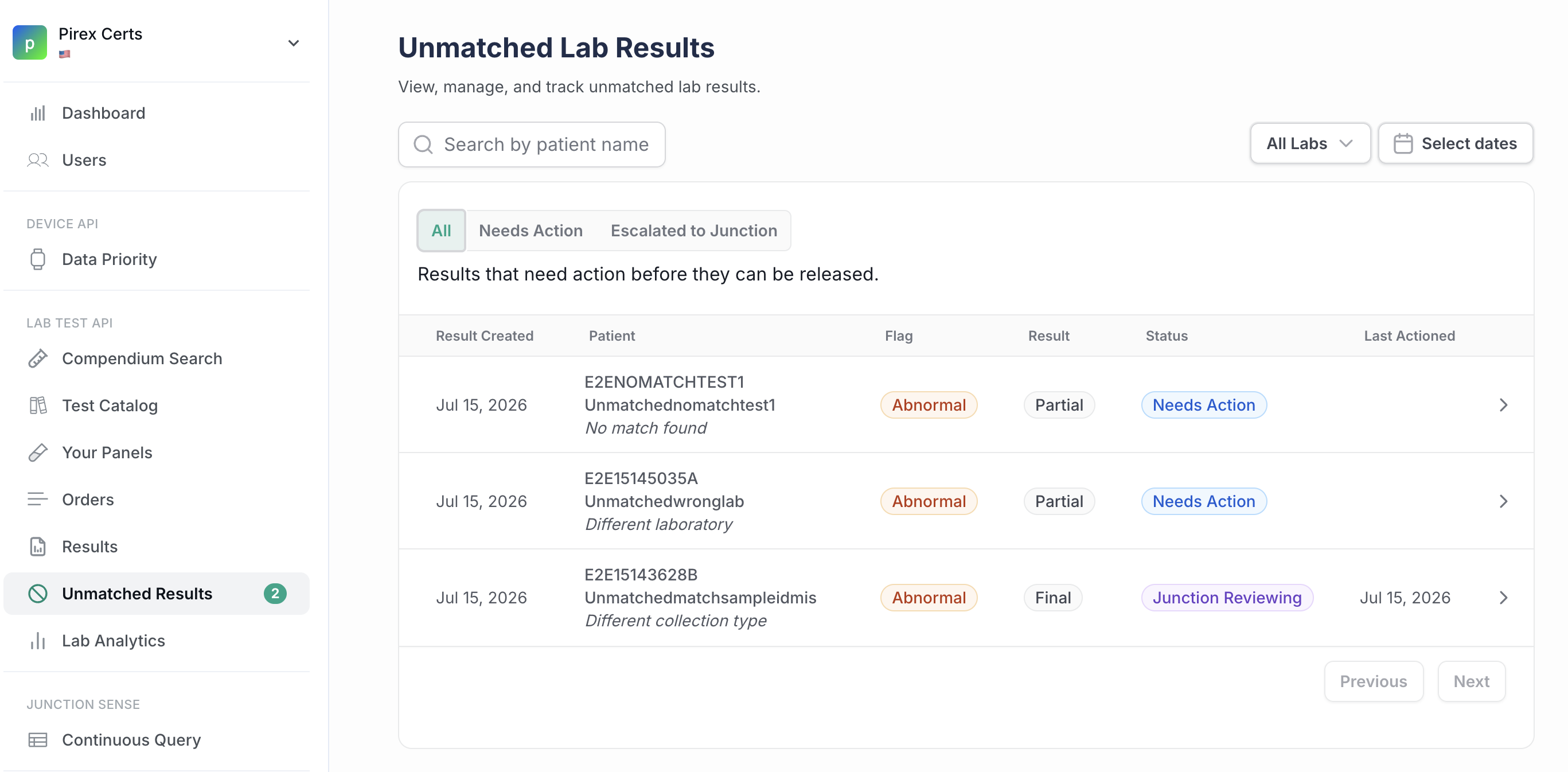
These results appear in Unmatched Results in the Junction dashboard, where your team reviews the case and decides what should happen. Until someone resolves the case, the result is not attached to an order and does not reach the patient's record.
Previously, Junction resolved these cases and contacted you over Slack when we needed input. Your team now owns the decision directly, which removes the back-and-forth and gets results released faster.
Building against the API instead? See the Unmatched Results Integration Guide for webhooks, endpoints, and payloads.
Accessing Unmatched Results
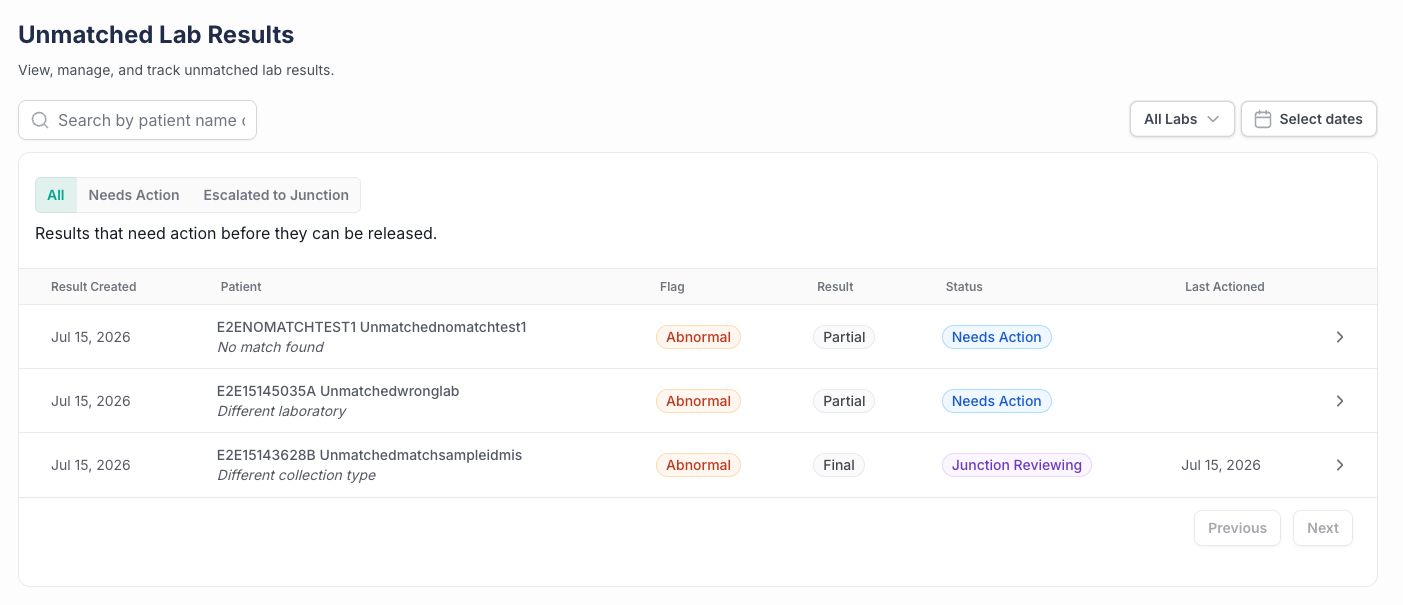
Sign in at app.junction.com.
Confirm you're in the correct environment and team.
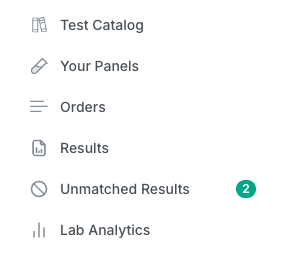
Select Unmatched Results from the left navigation.
You'll see two queues:
Needs Action — cases waiting on a decision from your team.
Junction Reviewing — cases your team has sent to Junction for investigation.
A badge on the navigation item shows how many cases are waiting.
Reviewing a case
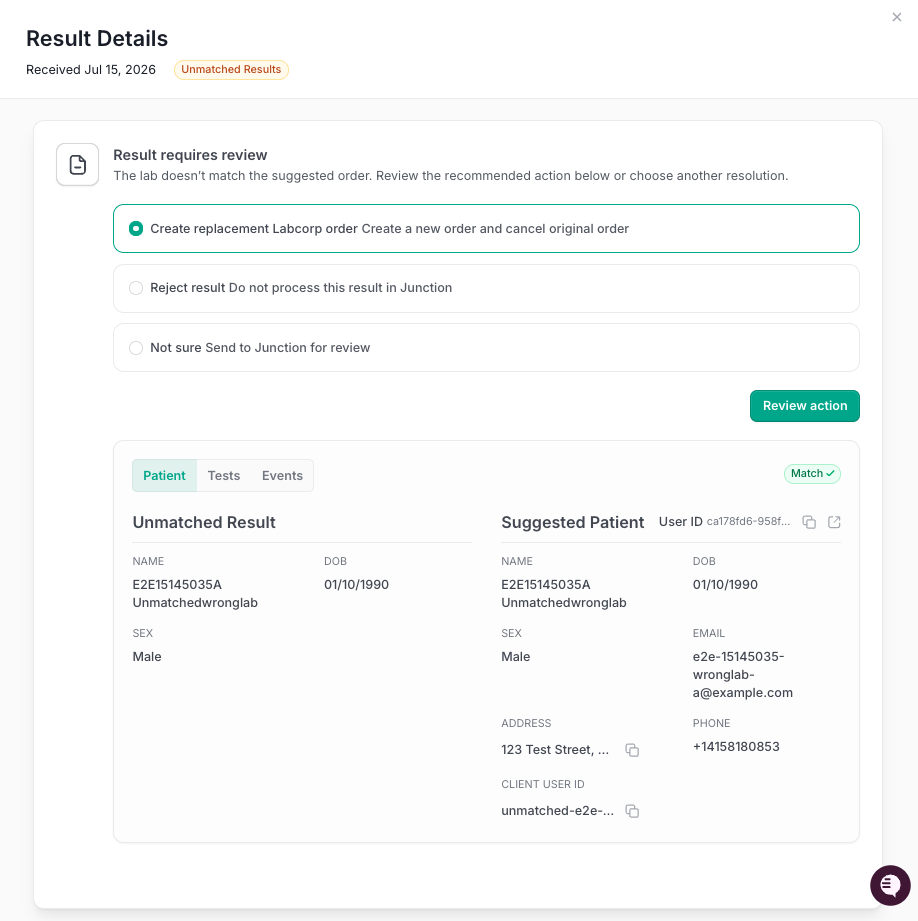
Each case shows the incoming result, the patient details the lab sent, the markers included, and the candidate patient and order Junction found (when applicable).
Work through a case in this order:
Read the reason. It tells you what blocked automatic matching.
Check the patient. Confirm the patient on the result is a patient of yours.
Check the suggested order. Compare the markers, lab, and collection date against the order.
Choose an action.
Available actions
The actions offered vary by case. If an action isn't shown, it isn't valid for that case.

Accept
Use the Junction recommended action when you're confident the result belongs to the patient and order shown. Depending on the case, accepting will attach the result to the existing order, or create a replacement order to carry the result where the original order can no longer receive it.
Accepting may produce a new order ID. Junction groups the original and any replacement or recreated order under a single order transaction, so the full history stays connected. If you store order IDs in your own system, keep both — don't overwrite the original. Even better: store Order Transactions.
Reject
Use Reject when the result doesn't belong to one of your patients, or shouldn't be attached to any order. The case is marked resolved and the result is not attached.
Send to Junction
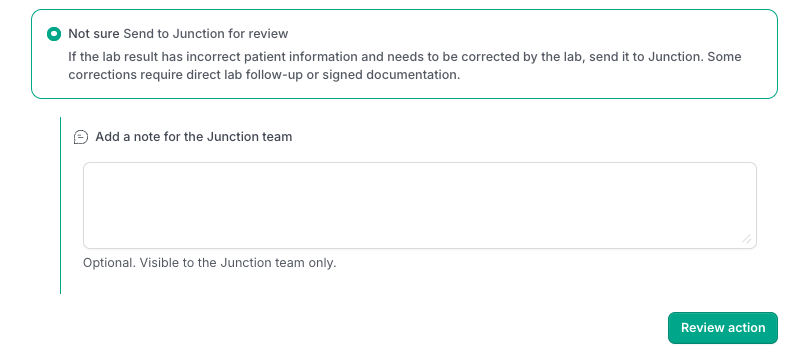
Use this when you can't confirm the patient's identity or the correct order, and need us to investigate. Add a note explaining what your team found — it's key context the investigating team has.
The case moves to Junction Reviewing, where your notes stay visible while we work it. Junction resolves the case from there.
Reasons a result can't be matched
Reason shown | What happened | What to check |
|---|---|---|
Order already completed | The sample matched an order that has already been completed and resulted | Whether this is a genuinely new result for the same patient and test |
Order was cancelled | The sample matched an order that had been cancelled before the result arrived | Whether the collection was valid and the result should be released |
Order not marked as collected | The order isn't in a state where it can receive a result | Whether the collection actually happened, and that the order is the right one |
Open order at a different lab | The patient matches, but their open order is written for a different central lab | Which lab performed the draw, and that the patient and test are correct |
Matches more than one patient | The demographics match more than one patient in your account | Which patient is correct — send to Junction if identity can't be confirmed |
Order found, but patient details don't match | The sample ID matched an order, but the demographics on the result don't | The demographic conflict, before attaching anything |
Patient found, but no matching order | The patient is identified, but no order carries this sample ID | Which of the candidate orders is correct, if any |
No match found | Neither a patient nor an order could be identified confidently | Whether this is your patient at all — reject or send to Junction |
The same labels appear in the dashboard and in email notifications.
A note on cancelled orders
Where an order was cancelled before the result arrived, the resolution is a replacement order — Junction does not reactivate cancelled orders. A cancelled order that has been un-cancelled isn't a valid state, and results released that way lose their audit trail. Accepting the case creates a replacement order that carries the result and stays linked to the original.
Notifications
Your team can receive a daily email digest of cases awaiting review, with results flagged critical sent immediately. Nothing is sent until a recipient address is configured in Organization or Team config.
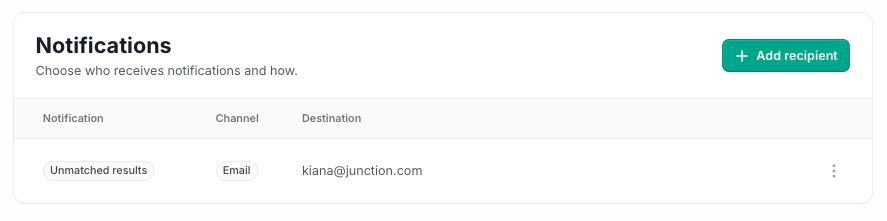
See Unmatched Results Notifications for setup.
How quickly should we action these?
Aim to clear cases within 0-3 days of receipt.
Cases stay in Needs Action until someone resolves them — they don't expire, and they don't return to Junction automatically. Any case still outstanding continues to appear in your daily digest under "Waiting from earlier."
The result isn't in the patient's record while the case is open, so an unactioned case is a patient waiting on a result.
Getting help
Share feedback or report a problem through your shared Slack channel with Junction. For a specific case, include:
the patient name or sample ID on the result
what you expected to happen and what actually happened
For cases you can't confidently resolve, use Send to Junction rather than Slack — it keeps the case and your notes together.