Results Dashboard Overview
Last updated: August 20, 2025
The Results Dashboard gives your clinical operations team a focused, high-clarity workspace for reviewing diagnostic results, separate from the broader Orders Dashboard.
It’s built to help you track, prioritize, and act on patient results efficiently, without clutter or confusion.
Why a Dedicated Results Dashboard?
Managing diagnostics through the Orders tab works well for tracking logistics, but results often require a different workflow that centers around:
Reviewing off-nominal or abnormal results
Coordinating handoffs across clinical or support teams
Ensuring no result falls through the cracks
Improving patient safety and accountability
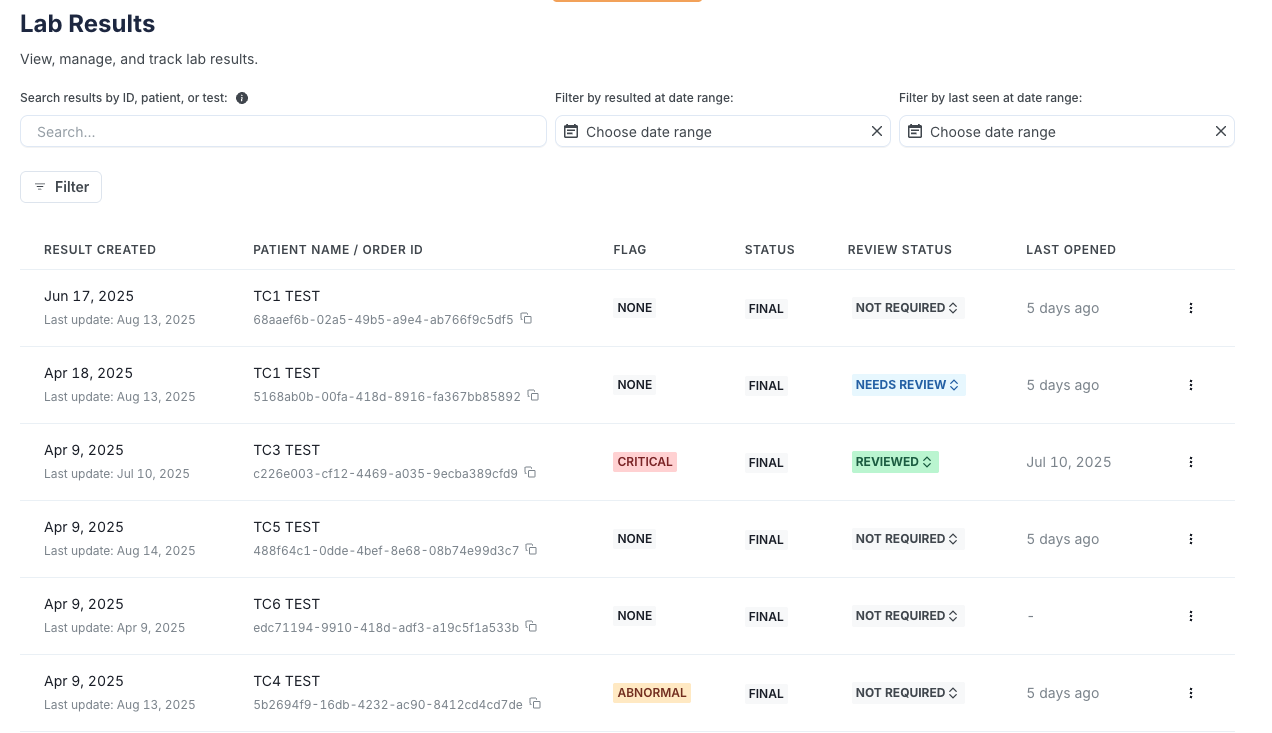
The Results Dashboard is purpose-built for operational review of diagnostic outcomes. Instead of digging through order-level data, you get a centralized feed of all result activity with tools to triage, track, and collaborate across your team.
What You Can Do in the Results Dashboard
Result only table | View only orders which have results, sorted by result recency |
Filter by flags | See flag badges directly in the table, and filter by: Abnormal, Critical, or None |
Automated review status | Rely on automated "needs review" status on any abnormal or critical result |
Filter by review status | Instantly sort by: Results needing review, reviewed results, and unreviewed results/review not needed |
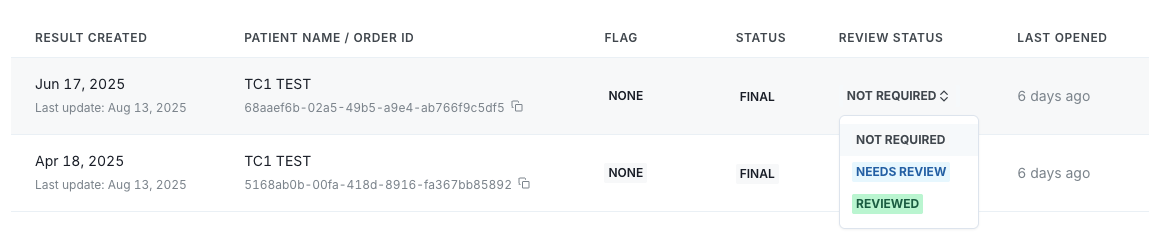
Mark results | Manually add a review status: “Needs review” for escalation or triage, “Reviewed” to confirm result has been handled |
Track last seen time | See when a result was last opened/seen to prevent duplicate work |
View result details | Click into any result to view its contents just like in the order detail view |
Team-wide visibility | Review status and timestamps are visible across all users, no silos |
When to Use the Results Dashboard
Daily result review workflows: Use this view to assign, escalate, or clear new results
Clinical QA / risk reviews: Flag anything that needs manual oversight
Operational tracking: Ensure SLAs or SOPs are being followed (e.g., all abnormal results reviewed)
Reducing cognitive load: No need to scan entire orders, focus only on incoming or unreviewed results
How to Use It
Navigate to the “Results” tab in your Junction Dashboard
Review the status column to see what’s unreviewed, flagged, or cleared
Click any row to open and review the result
Use the dropdown to mark it as “Reviewed” or “Needs Review” as appropriate
Your updates are saved and instantly visible to all teammates
Who Has Access?
Anyone with access to your Junction Dashboard will see the same review statuses and timestamps. This ensures transparency and collaboration across care, ops, and support teams.
FAQs
Q: Can I see who marked a result as reviewed?
Not yet. We currently track when it was reviewed, but user-specific audit trails are a future enhancement.
Q: Can I add notes or comments to results?
Not in this version, but this is a common request we’re exploring for future updates.
Q: Do review statuses sync to the Orders tab?
No. The Results Dashboard is a standalone view focused on result-level workflows.