Customize patient SMS messages (SMS white-labeling)
Last updated: November 2, 2026
Overview
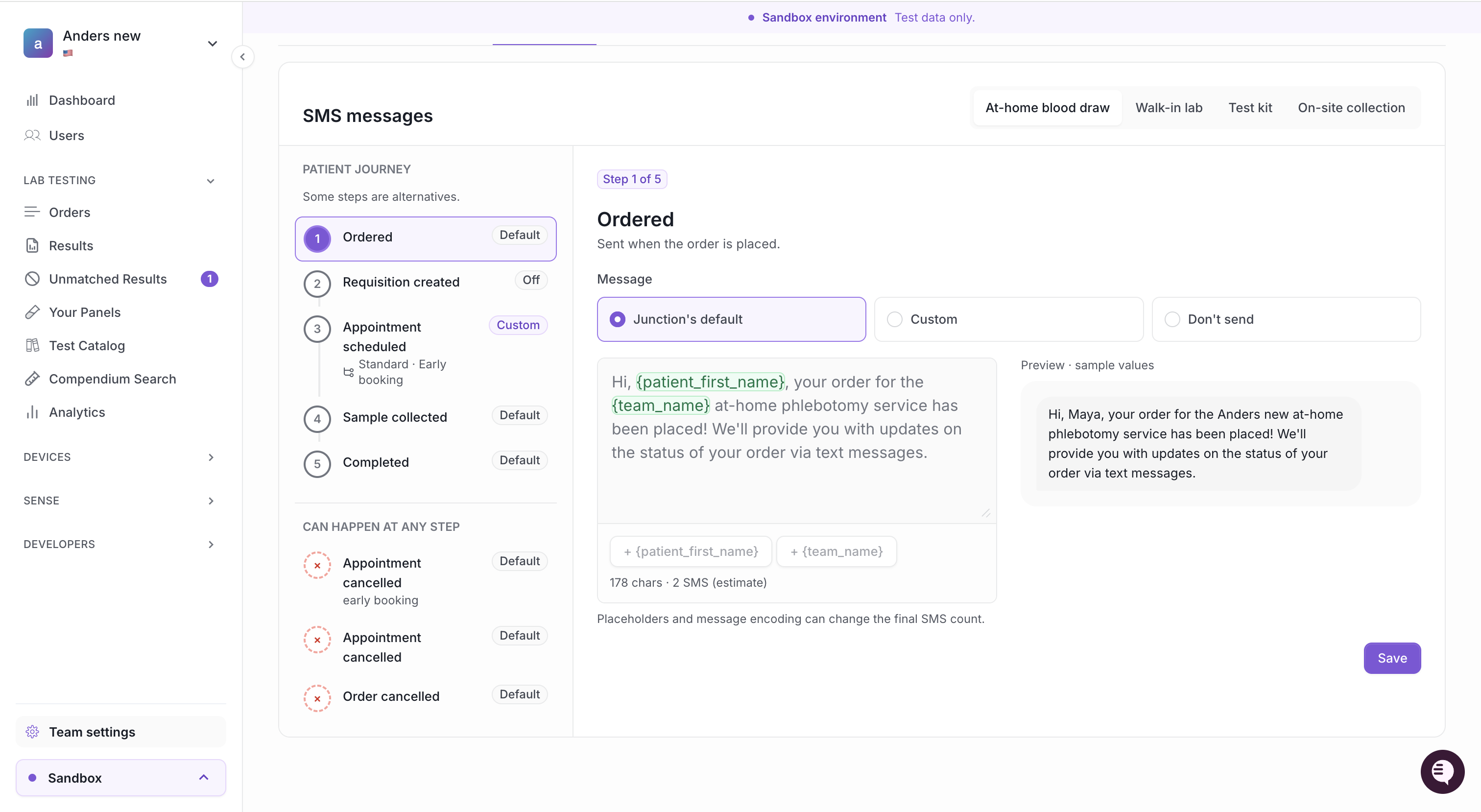
You can now control the text messages Junction sends to your patients as their lab order progresses. In the Junction Dashboard, the Communication tab in your team settings lists every SMS in the patient journey for each testing modality. For each message you can:
keep Junction's default text,
write your own Custom text using placeholders such as
{patient_first_name}and{team_name}, orchoose Don't send to turn that message off.
A live preview shows the message with sample values before you save, so patients receive messages that match your brand and tone.
Prerequisites
Access to your team in the Junction Dashboard, with permission to edit Team settings.
Patient SMS enabled for your team. Junction only sends SMS when the order includes a valid patient phone number in
patient_details.The feature is shown here in a Sandbox environment ("Test data only"). Configure and test in Sandbox first, then repeat in Production.
Where to find it
Sign in to the Junction Dashboard and select your team.
Open Team settings (bottom of the left sidebar).
Select the Communication tab (next to General, API Keys, Branding, Notifications and Billable Usage).
The page path is https://app.junction.com/team/<your-team-id>/<environment>/configuration/communication.
How the SMS messages panel is organized
Modality tabs. At the top right of the SMS messages panel, choose the testing modality you want to configure:
At-home blood draw
Walk-in lab
Test kit
On-site collection
Each modality has its own set of messages.
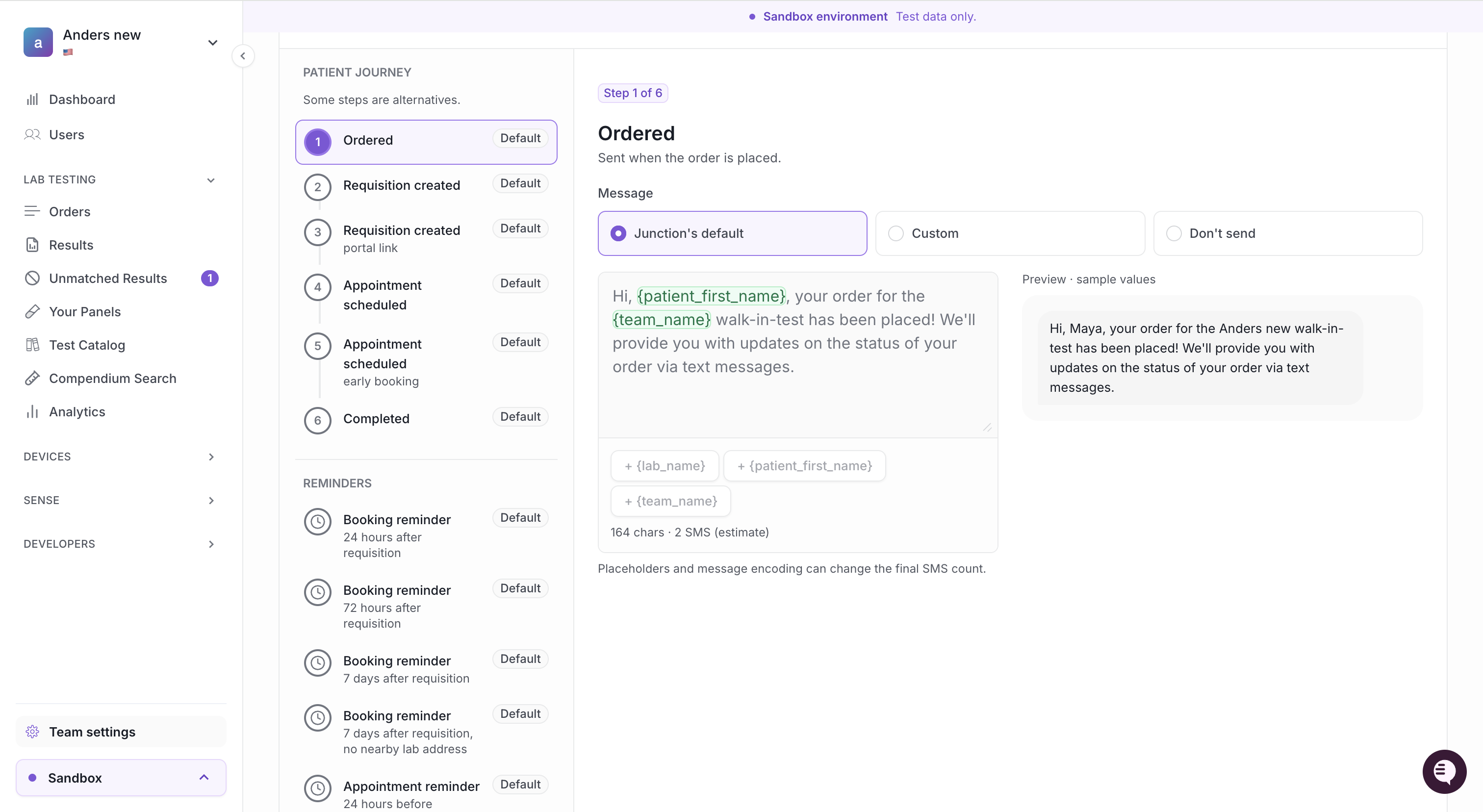
Patient journey. The left column lists the messages in the order a patient receives them. Some steps are alternatives, so a patient receives only one of them. Each step shows a badge with its current setting: Default, Custom or Off.
At-home blood draw (5 steps) | Walk-in lab (6 steps) |
|---|---|
1. Ordered | 1. Ordered |
2. Requisition created | 2. Requisition created |
3. Appointment scheduled (Standard booking / Early booking) | 3. Requisition created (portal link) |
4. Sample collected | 4. Appointment scheduled |
5. Completed | 5. Appointment scheduled (early booking) |
6. Completed |
Reminders (Walk-in lab). Scheduled reminders that can also be customized:
Booking reminder: 24 hours after requisition
Booking reminder: 72 hours after requisition
Booking reminder: 7 days after requisition
Booking reminder: 7 days after requisition, no nearby lab address
Appointment reminder: 24 hours before appointment, time included
Appointment reminder: 24 hours before appointment, time omitted
Appointment reminder: 2 hours before appointment
Can happen at any step. Messages that are triggered by an event rather than a journey step, for example:
Appointment rescheduled (Walk-in lab)
Appointment cancelled (early booking)
Appointment cancelled
Redraw available (Walk-in lab)
Order cancelled
Step-by-step: customize a message
Go to Team settings > Communication.
Choose the modality tab, for example At-home blood draw.
Select the step you want to change in the Patient journey, Reminders or Can happen at any step list. The right-hand panel shows the step number and when the message is sent (for example, Ordered: Sent when the order is placed).
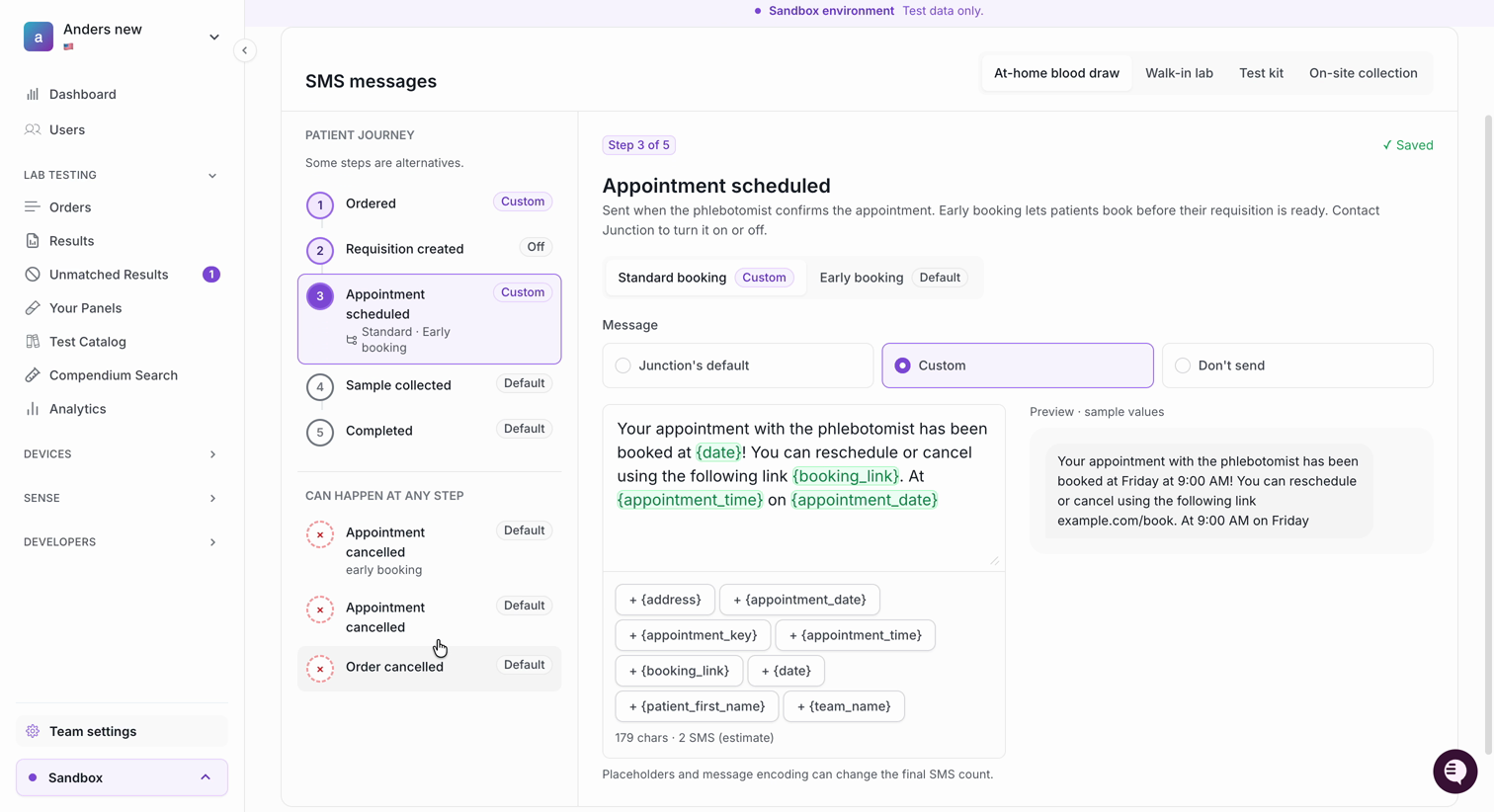
If the step has variants, pick the one to edit. For example, Appointment scheduled has Standard booking and Early booking sub-tabs. Early booking lets patients book before their requisition is ready; contact Junction to turn it on or off.
Under Message, choose one of:
Junction's default: sends Junction's standard text (shown read-only).
Custom: lets you edit the text.
Don't send: no SMS is sent for this step. The step's badge changes to Off.
If you chose Custom, write your message in the editor. Click a placeholder chip (for example + {patient_first_name}) to insert it at the cursor.
Check the Preview - sample values panel on the right. It shows your message with example data (for example, the patient name "Maya").
Check the character count and SMS estimate below the editor (for example, 179 chars · 2 SMS (estimate)).
Click Save. A ✓ Saved confirmation appears and the step's badge changes to Custom. The new text is used for this message from then on.
If you move to another step with unsaved changes, the dashboard asks "Discard unsaved changes?". Choose Cancel to go back and save, or OK to discard.
Configuration options
Option | What it does |
|---|---|
Junction's default | Uses Junction's standard message for that step. |
Custom | Uses your own text, with placeholders filled in per order. |
Don't send | Turns off that SMS. The badge shows Off. |
Placeholders
Only the placeholder chips shown under the editor are available for that message. The available set depends on the step. Examples shown in the dashboard:
Placeholder | Meaning | Example steps |
|---|---|---|
| Patient's first name | Most steps |
| Your team or organization name | Most steps |
| Name of the laboratory | Walk-in lab steps |
| Link to book or manage the appointment | Requisition created, Appointment scheduled |
| Formatted appointment date and time | Appointment scheduled |
| Date of the appointment | Appointment scheduled |
| Time of the appointment | Appointment scheduled |
| Address of the appointment location | Appointment scheduled |
| Unique identifier for the appointment | Appointment scheduled |
For the full list of parameters per template, see SMS Template Parameters. Using a placeholder that isn't supported for a message can cause an error or an unsent message, so only use the chips offered for that step.
Message length
The counter under the editor shows characters and an estimated number of SMS segments. Placeholders and message encoding (for example emoji or special characters) can change the final SMS count, so keep important information near the start and keep messages short.
Example
Modality: At-home blood draw. Step: Appointment scheduled (Standard booking).
Junction's default:
Your appointment with the phlebotomist has been booked at {date}! You can reschedule or cancel using the following link {booking_link}.
Custom message:
Hi {patient_first_name}, your {team_name} blood draw is confirmed for {appointment_time} on {appointment_date}. Need to reschedule or cancel? Use this link: {booking_link}
The preview replaces the placeholders with sample values (for example, "Hi Maya, your Acme Health blood draw is confirmed for 9:00 AM on Friday..."). Click Save to apply it.
Troubleshooting and FAQ
Patients aren't receiving any SMS. Check that patient SMS is enabled for your team and that the order includes a valid phone number in patient_details. Also check that the step isn't set to Don't send (badge Off).
My custom message wasn't sent, or a placeholder shows up blank. Only use the placeholder chips listed under the editor for that step. Some values may be empty for a given order (for example, no appointment address yet), and empty values are left out of the message. Reword the message so it still reads well if a value is missing.
Why is my message counted as 2 SMS? Longer messages are split into several segments. Placeholders are replaced with real values, which can be longer than the sample, and special characters can change the encoding. Shorten the text to reduce the count.
I changed a message but it went back to the old text. Make sure you clicked Save and saw ✓ Saved. If you switch steps first and choose OK on "Discard unsaved changes?", your edits are lost.
How do I go back to the standard text? Select the step and choose Junction's default, then click Save.
What is "Early booking"? Early booking lets patients book an appointment before their requisition is ready. It has its own Appointment scheduled and Appointment cancelled messages. Contact Junction to turn it on or off for your team.
Can I customize emails here too? This page covers SMS. For email branding, see Branding.
Can I stop Junction from contacting patients completely? Yes. Disable patient SMS and email for the team, then use Junction webhooks to send messages from your own system. See Patient Communications below.
Related links
Questions? Contact Junction support or your Customer Success Manager.