Patient Self-Scheduling & Lab Order Page — Product Guide
Last updated: February 18, 2026
To enable this capability for your team, reach out to your Customer Success Manager.
Overview
The Patient Portal is a secure, white-labeled experience that allows patients to schedule their lab appointment, understand what’s been ordered, and know what to expect at the lab — all through a unique, order-specific link.
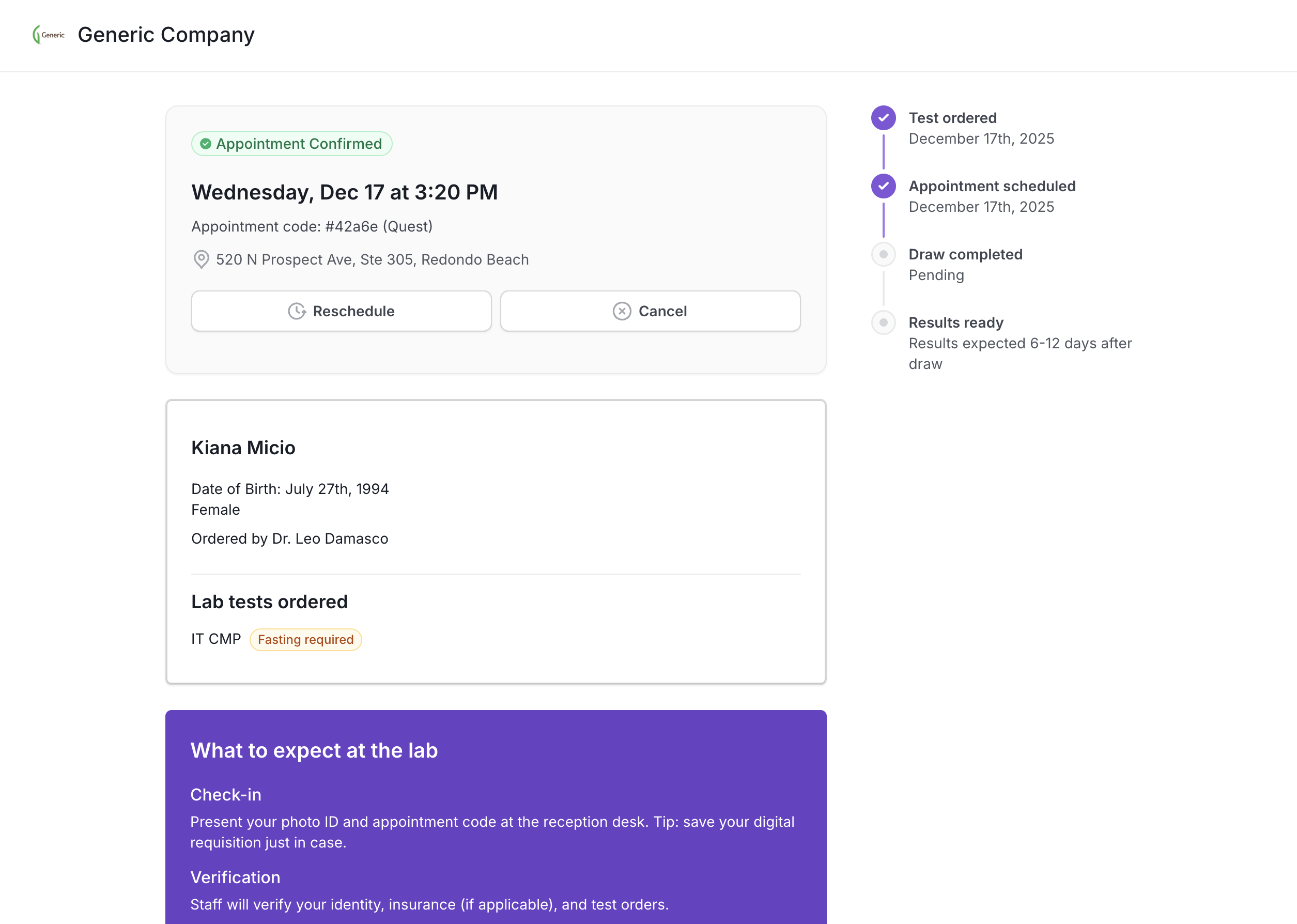
Customers can use the Patient Portal in two ways:
Automatically, via Junction’s email and SMS notifications (no engineering work required), or
Manually, by generating a Portal URL via the Junction API and linking out from their own product
The Portal is designed to reduce friction to collection, increase appointment booking, and improve overall lab utilization.
What the Patient Portal Enables
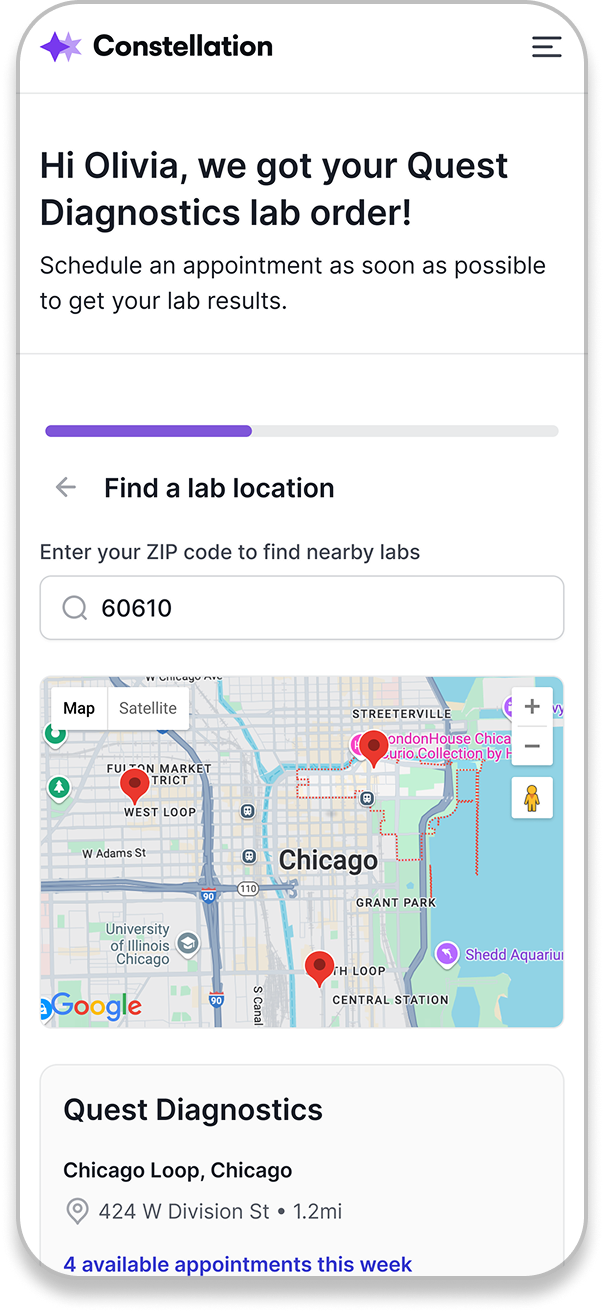
With the Patient Portal, patients can:
Securely access their lab order
Schedule a Quest PSC appointment directly on page
View appointment details (location, date, time, confirmation code)
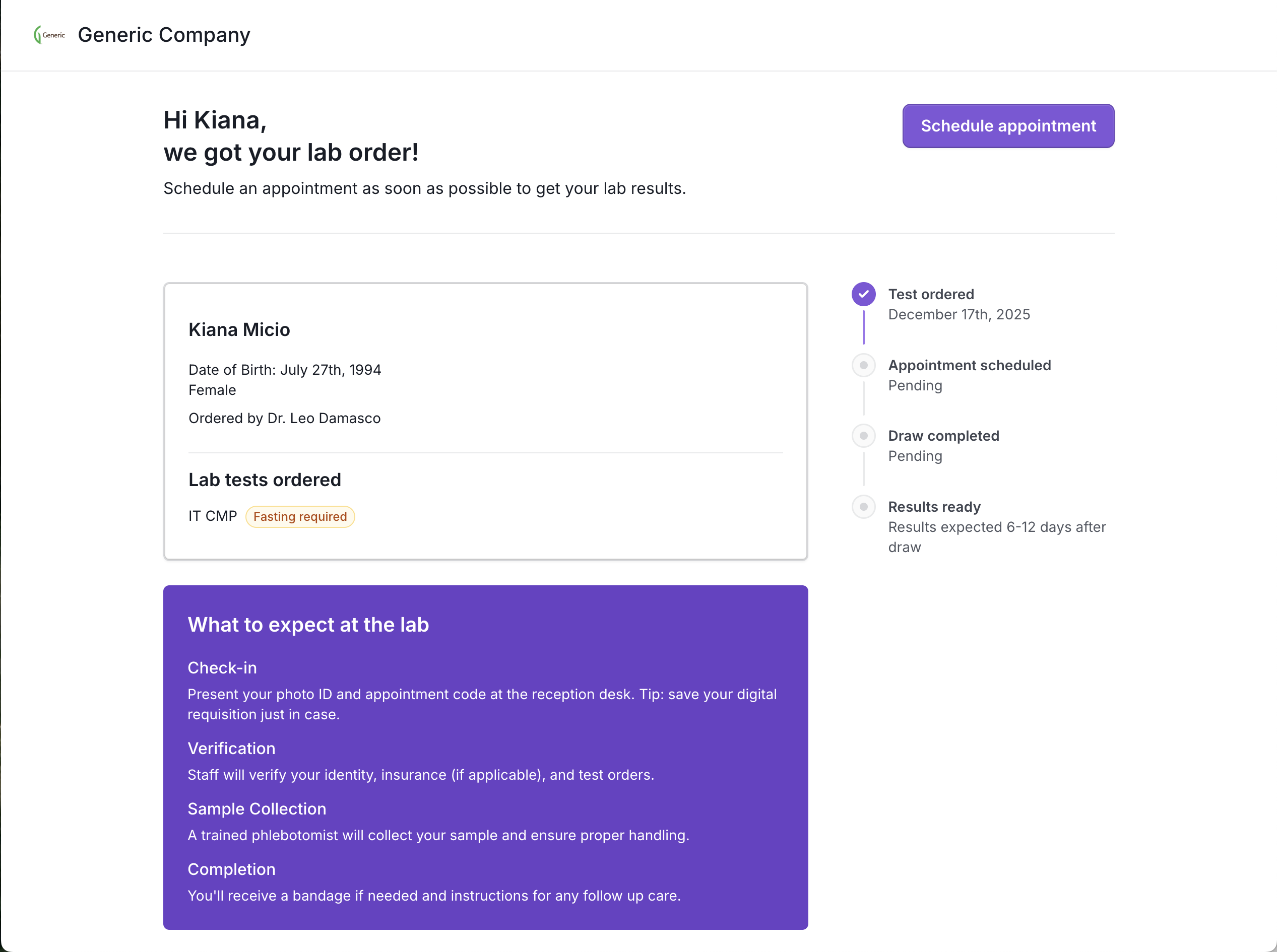
Track order progress
See expected lab turnaround time for results
Review tests ordered and fasting requirements
Understand what to expect at the lab
Download their lab requisition
Access help if they get stuck
All within a mobile-friendly, branded experience hosted by Junction.
For Labcorp and BioReference orders, the appointment booking button opens a new tab in the patient's browser for scheduling on the labs' external websites. Direct on-page scheduling is coming soon.
How Patients Access the Patient Portal
Option 1: Junction Email & SMS (Default, No Engineering Required)
If you use Junction’s patient email and SMS notifications:
A unique Patient Portal link is automatically generated
The link is included in:
Order confirmation messages
Future reminder messages (coming soon)
Patients simply tap the link to access their Portal
This is the fastest way to get started and requires no API work.
Option 2: Generate the Portal Link via API (Optional)
For customers who want to surface the Portal inside their own product experience, you can generate the link yourself using the Junction API and link out to it.
The Patient Portal frontend is hosted by Junction and opens as a new page. It is not an embeddable module or iFrame in the MVP.
Authentication & Security (Corrected)
Authentication depends on how the portal link is delivered:
A) If the link is delivered via Junction comms (Email/SMS)
Patients must verify their identity using 6-digit OTP verification.
Flow:
Patient opens the Portal link
Patient chooses one of two verification methods:
Email me a 6-digit code, or
Text me a 6-digit code
The code is sent to the patient’s pre-populated email address or phone number from the order
Patient enters the code to proceed
Notes:
The patient can only send the code to the contact info on the order
No passwords, accounts, or long-term logins
If a patient accesses the Patient Portal via a Junction-generated short link, they only need to complete verification once per device.
B) If the link is generated via the Junction API
Patients are pre-authenticated.
There are two distinct API-based behaviors:
Case 1: Portal URL generated with patient context (pre-authenticated)
If the customer generates the Portal URL via the Junction API and passes the required patient context:
The patient is pre-authenticated
No OTP verification is required
The Portal opens directly
This is intended for customers who:
Already authenticate patients in their own product
Want a seamless link-out experience
Control how and when the link is shared
Case 2: Short link generated without patient context
If a short link is generated without patient context:
The patient must authenticate using a 6-digit OTP
OTP is sent via Junction email or SMS
⚠ Important:
Sending OTP codes requires Junction white-labeled email and/or SMS to be enabled. Customers who do not have Junction comms enabled cannot currently complete OTP delivery.
Patient Experience Flow (for Quest orders)
Step 1: Patient opens their unique Portal link (with authentication) to view their lab order and is prompted to schedule an appointment
Step 2: Patient's zip code is pre-populated from the order information to present convenient lab PSC's for their collection
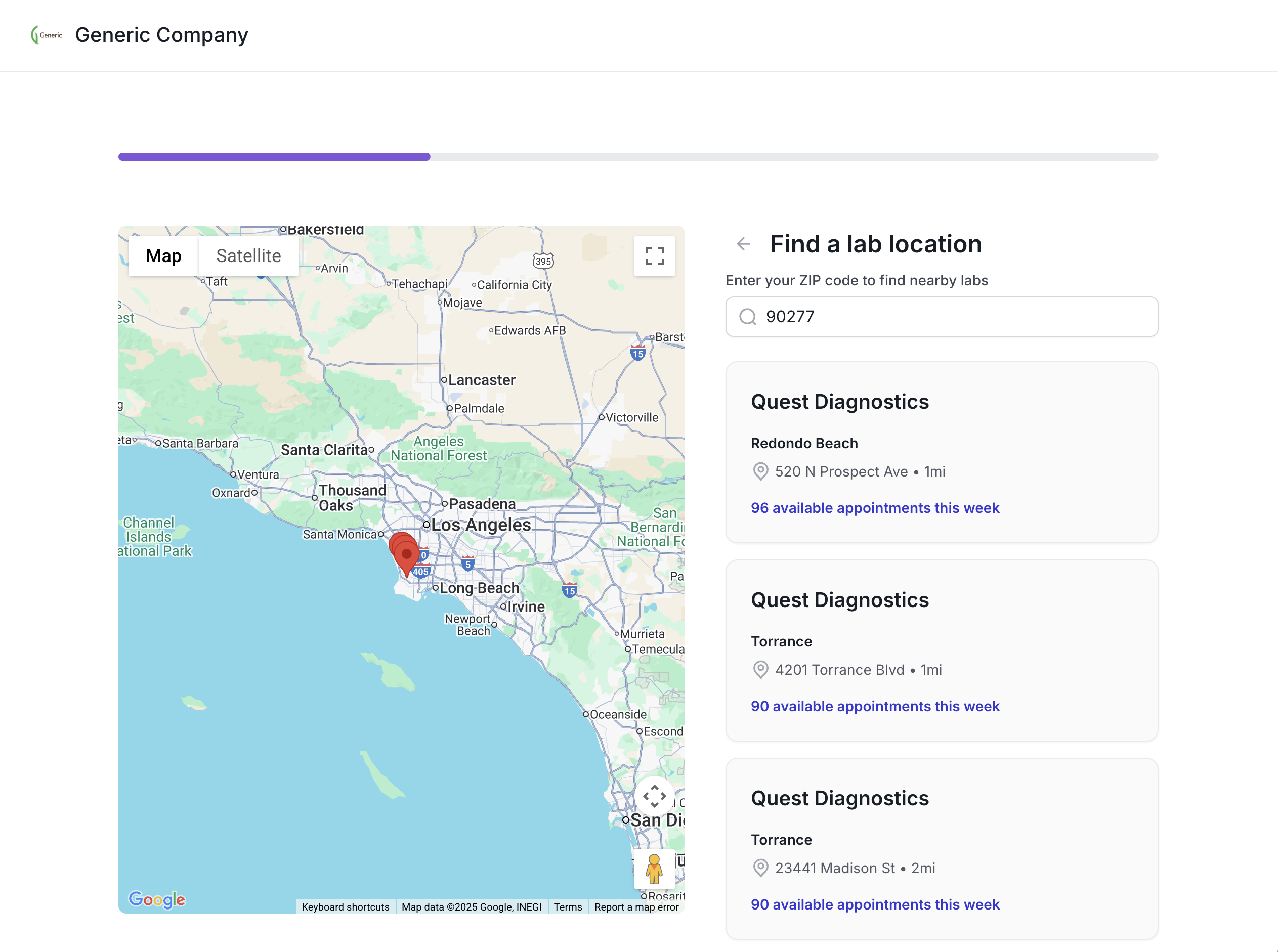
Step 3: Patient selects a convenient location, date, and time
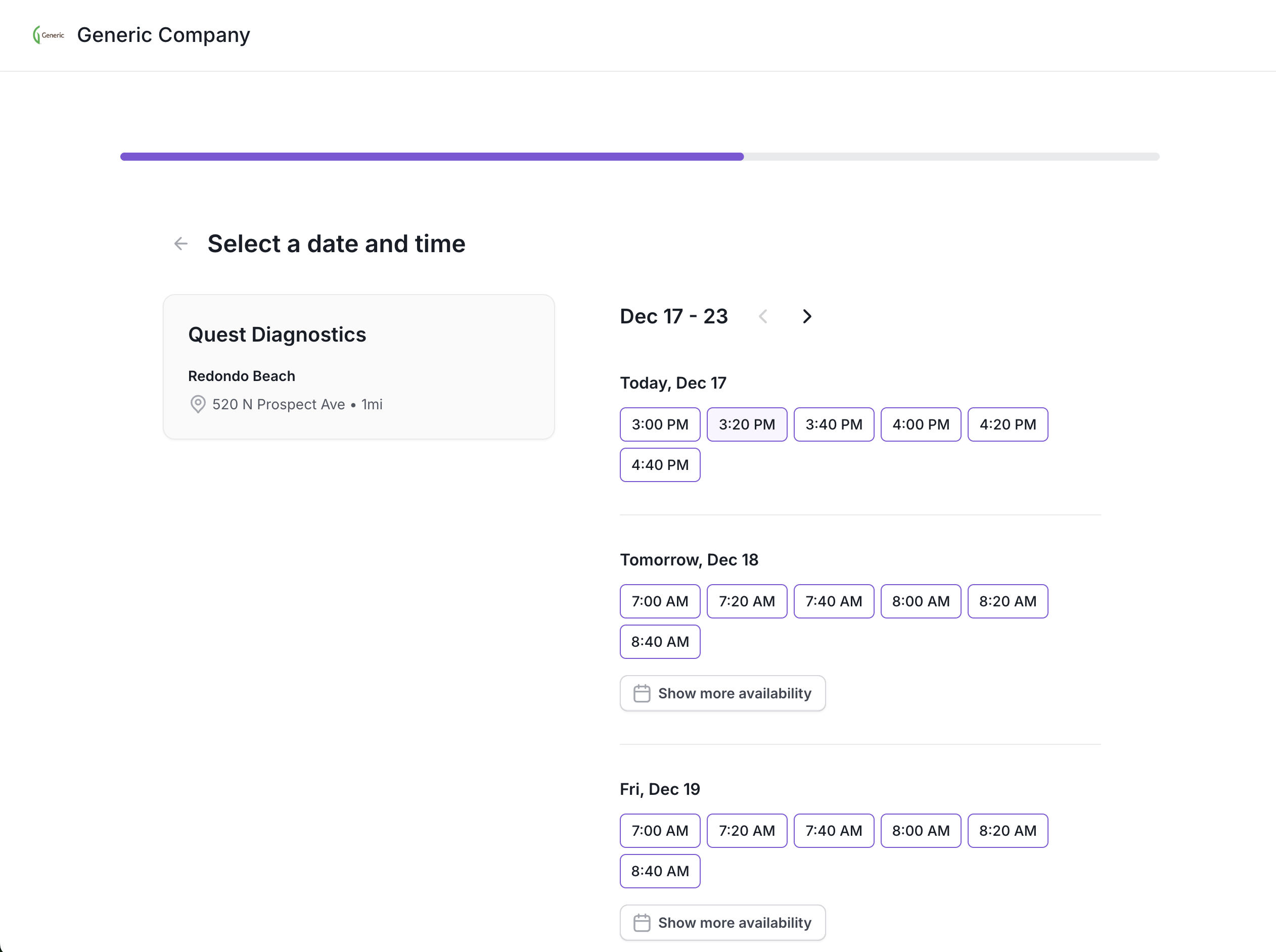
Step 4: Patient reviews and confirms appointment
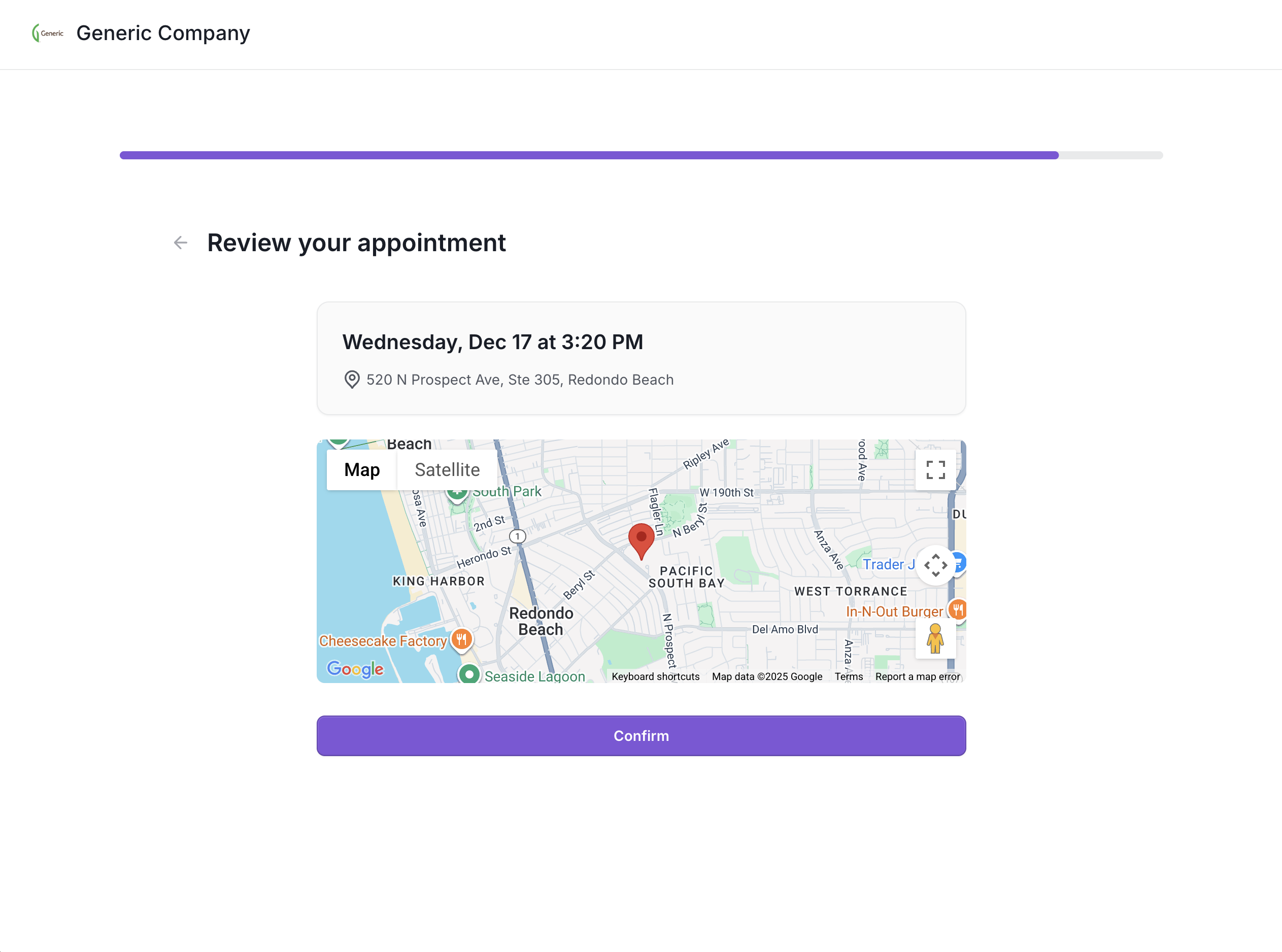
Step 5: Appointment is confirmed with an appointment code and progress bar is updated.
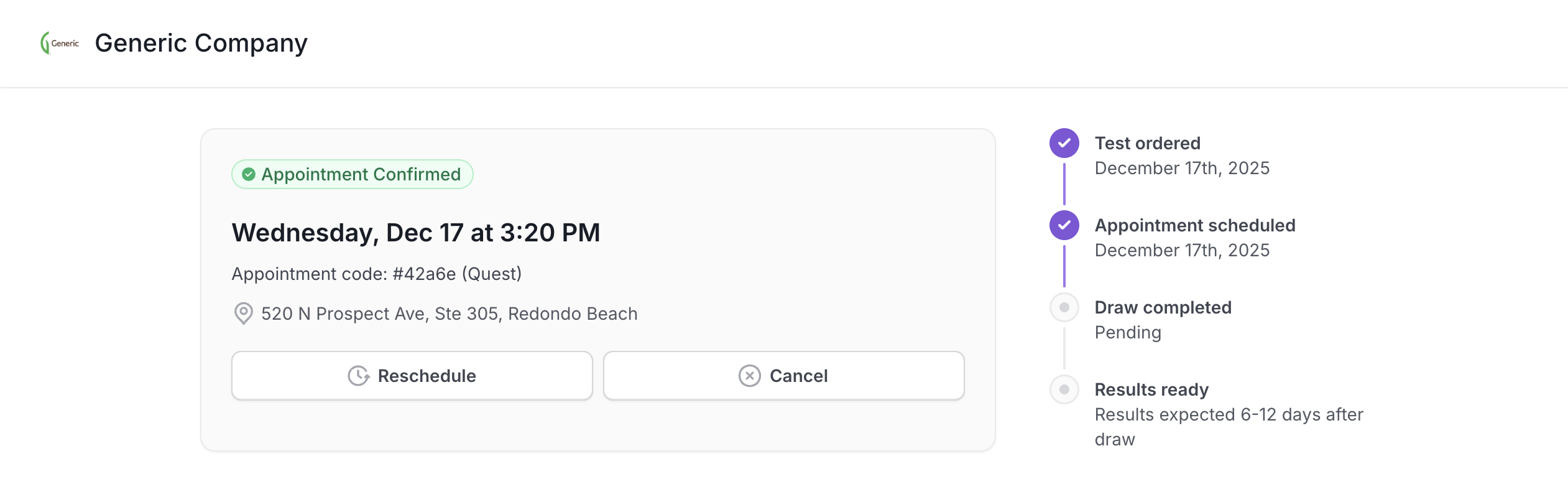
The patient can return to the Portal to:
Review appointment details
Download their requisition
Review preparation instructions
Reschedule or cancel an appointment
Supported Labs & Scheduling
Quest PSC scheduling is supported directly on-page
Availability is based on real-time Quest location data
For Labcorp and BioReference orders, the appointment booking button on the lab order page opens a new tab in the patient's browser for scheduling on the labs' external websites. Direct on-page scheduling is coming soon.
What the Patient Portal Does Not Do (Yet)
The Patient Portal MVP does not currently support:
Creating patient accounts or logins
Viewing lab results
Modifying lab orders
Billing or payment flows
Other collection modalities outside of lab PSCs
The Portal is intentionally focused on helping patients complete the collection step successfully by scheduling a convenient draw appointments and answering common questions about what to expect at the lab.
Branding & White-Labeling
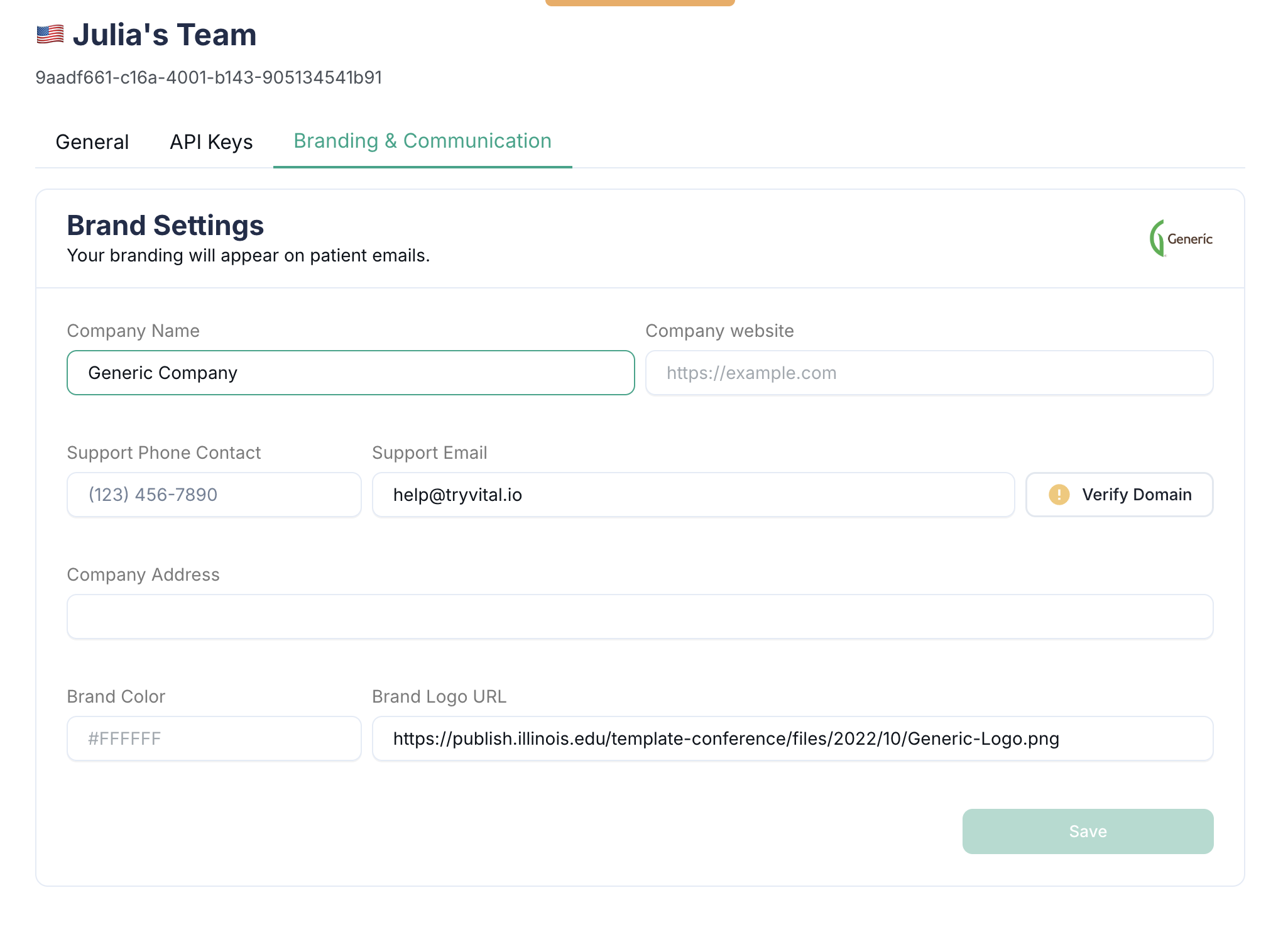
The Patient Portal inherits your configured brand settings in Junction
The experience is branded, but hosted and maintained by Junction
No frontend work is required to launch.
Getting Started
To enable the Patient Portal:
Confirm your team is using Junction email and/or SMS (recommended), or plan to generate links via API
Reach out to your Customer Success Manager
Junction will help confirm eligibility and rollout timing